To manage your shopping cart, simply click the Shopping Cart icon at the top right corner of the page. To change quantities or remove an item, use the "+" or "−" buttons next to the product, or click the "Remove" (Trash bin) icon to clear it completely before proceeding to checkout.
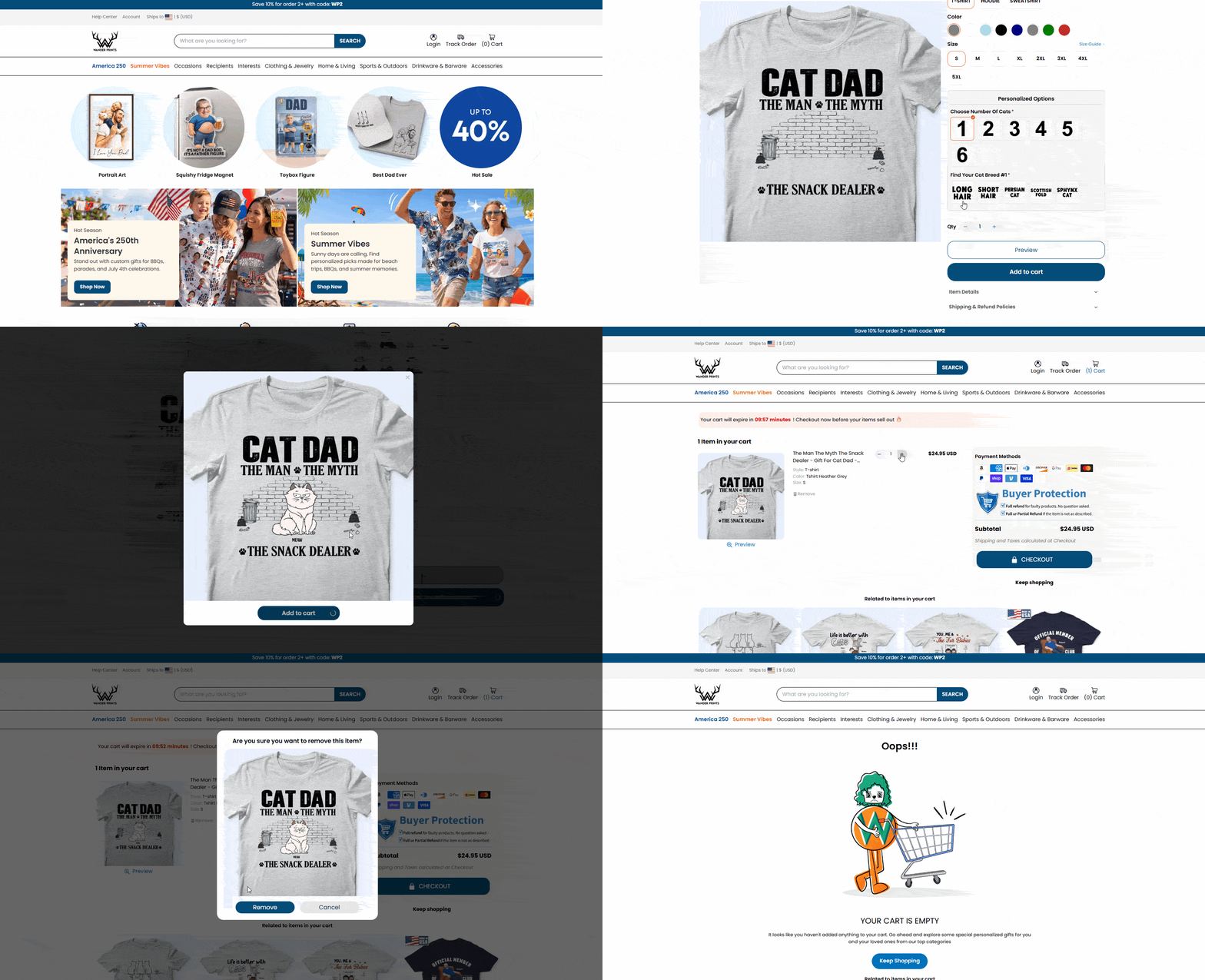
1. Adding Items to Your Cart
Every item at Wanderprints can be fully personalized to your liking.
Choose your favorite product and fill in all the required personalization fields (names, cliparts, quotes, etc.).
Click the "Add to Cart" button.
A sidebar or confirmation window will appear showing that your custom item has been successfully added. You can choose to "Continue Shopping" or "View Cart."
2. Viewing Your Cart
You can review your selected custom gifts at any time during your shopping session:
Click the Shopping Cart icon located at the top right corner of any page on Wanderprints.com.
Inside the cart, you will see a detailed summary of your product choice, including your specific personalization details and a preview thumbnail.
3. Changing Quantities or Removing Items
If you change your mind or need to make adjustments before paying, you can easily modify your cart directly from the Cart summary page:
To Add More of the Same Item: Click the "+" button next to the product quantity.
To Reduce the Quantity: Click the "−" button.
To Completely Remove an Item: Keep clicking the "−" button until the quantity reaches zero, or simply click the "Remove / Delete" text (or trash bin icon) located underneath the product title.
⚠️ Important Note: Since our products are made-to-order, please double-check all names, spellings, and custom options in your cart before clicking "Proceed to Checkout." Once an order is placed, modifications may cause production delays.
Was this article helpful?
That’s Great!
Thank you for your feedback
Sorry! We couldn't be helpful
Thank you for your feedback
Feedback sent
We appreciate your effort and will try to fix the article